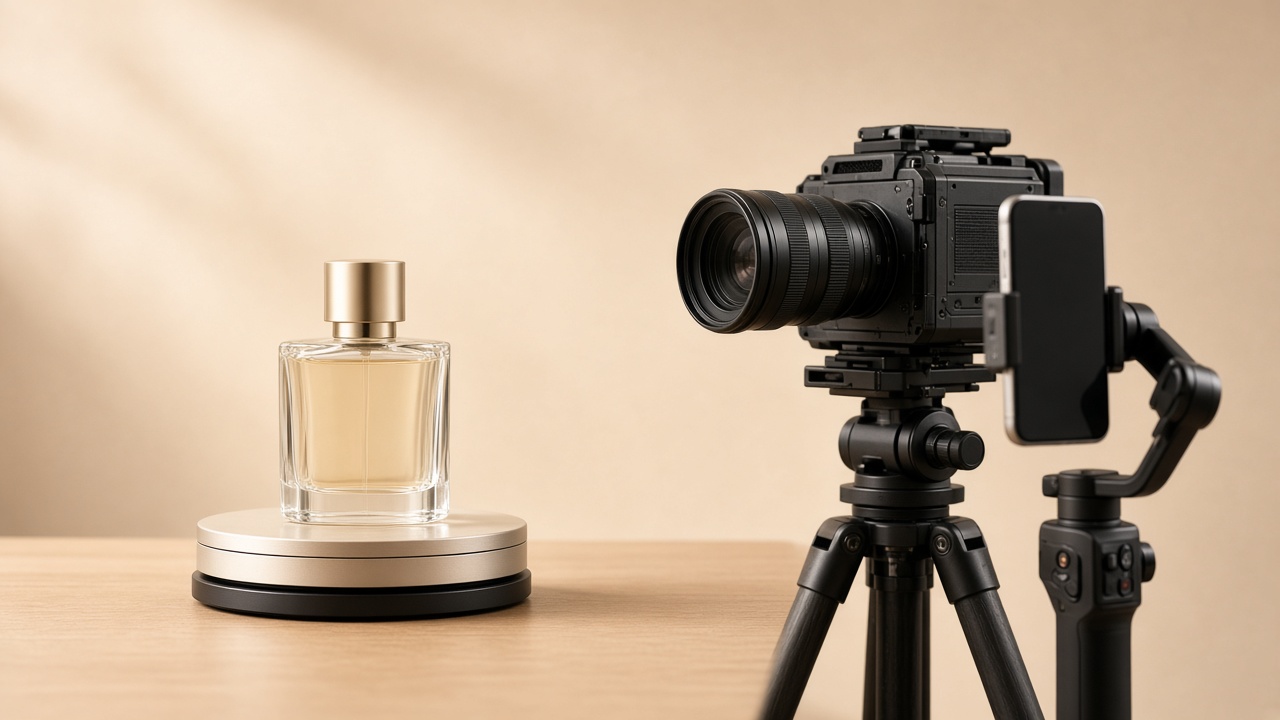
How to take product photos with an iPhone: 10 tips for professional results
An iPhone, a window and a sheet of white card are enough for usable product photos for your online shop. Ten practical tips, the right settings and when it stops being enough.
By The Vela Team
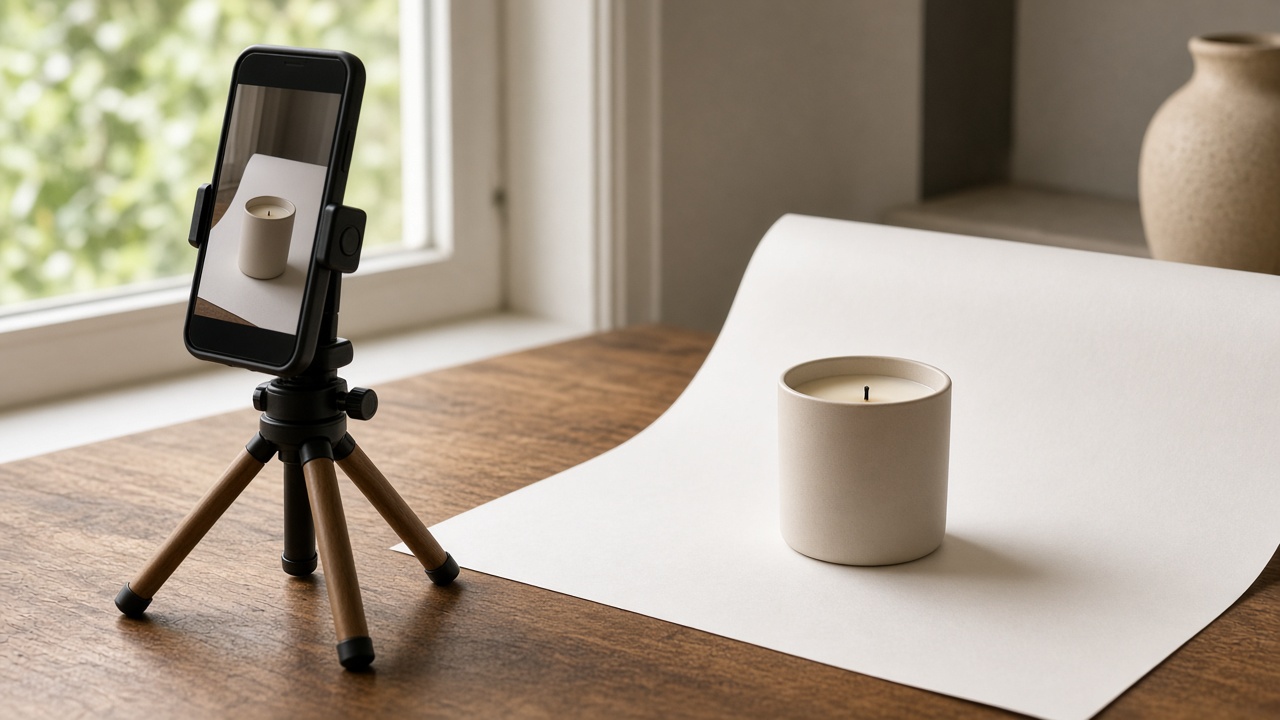
Short answer: to take good product photos with an iPhone, get three things under control: light (soft daylight from the side, no flash), stability (a tripod and the timer) and consistency (the same angle, distance and background for every product). Also turn on the grid and level, use the 2x or 3x lens rather than the wide lens, and lock focus and exposure by touching and holding the product until "AE/AF Lock" appears (Apple Support). With that foundation you have usable photos for your online shop, and a good starting point for whatever you do with them next.
Below you will find what you need, ten practical tips, a settings checklist and the point at which iPhone photos stop being enough. The tips work on Android phones too; only the names of the settings differ.
What do you need?
Less than you think. For most small and medium-sized products, this is enough:
- Your iPhone, ideally a model with a second or third lens (2x or 3x).
- A small tripod with a phone mount. The most important item on this list.
- A large window without direct sun, or two lamps with the same colour temperature.
- White card or white photo paper as a background, plus a second sheet of white card as a reflector.
- A microfibre cloth for your lens and your product.
- Tape or sticky putty to hold the background and product in place.
A light box can help for small items but is not essential. How to build a seamless white background from paper is covered in white background product photography.
10 tips for taking product photos with an iPhone
1. Clean your lens
An iPhone spends all day in your hand or pocket. A greasy lens puts a haze over your photo, especially around bright areas. Wipe the lens with a microfibre cloth before every session. It takes five seconds and it is the most underrated tip on this list.
2. Use soft daylight from the side, not the flash
Put your product next to a window, with the light coming from the left or right. If direct sun comes in, hang a white curtain or baking paper over the window. Place a sheet of white card on the other side of the product to lift the shadows. Turn the flash off: it causes harsh reflections and a flat, unnatural picture. And do not mix daylight with a warm bulb, or you will get a colour cast.
3. Turn on the grid and level
Go to Settings > Camera and turn on Grid and Level (Apple Support). The grid helps you place the product in the same spot every time; the level helps you shoot straight, which shows most on bottles, boxes and packaging.
4. Use the 2x or 3x lens and step back
The standard wide lens distorts products up close: the front looks bigger and straight lines bend. Choose the 2x or 3x lens and move the phone a little further away. Do not pinch-zoom beyond your phone's optical lenses, because the picture loses sharpness.
5. Lock focus and exposure
Tap the product to focus, then touch and hold until "AE/AF Lock" appears. Focus and exposure then stay the same for the next shots (Apple Support). Drag beside the focus box to adjust exposure. On a white background the image can usually be a touch brighter.
6. Use a tripod and the timer
Even slight shake blurs small text on a label. Put your iPhone on a tripod and use the Camera app's 3 or 10-second timer (Apple Support) so you are not touching the phone when the photo is taken. A bonus: every shot has the same framing.
7. Do not use Portrait mode for your main image
Portrait mode blurs the background in software. That works well for people, but with products the edges often go wrong: part of the bottle turns soft, a handle half disappears. For your main image you want the whole product sharp. Use the normal Photo mode and create depth by moving the product away from the background.
8. Shoot every product the same way
Mark the product's spot on the table with tape, and leave the tripod and lights where they are between products. Same angle, same distance, same light. A consistent catalogue on a category page looks more professional than one perfect photo.
9. Shoot more than just the front
For each product, take at least this set:
- Front on a white background (your main image).
- Sides and back.
- Details: texture, fastening, label, material.
- Scale: the product in a hand or next to a familiar object.
- Packaging, if it is part of the purchase.
Marketplaces such as bol.com require the main image to show the front of the item (bol.com Partner Platform, Dutch).
10. Edit lightly, and always the same way
In the Photos app, stick to the basics: exposure, contrast, white balance, straightening and cropping. No filters: they change your product's colour, and a customer who receives a different colour from the one they saw sends it back. Edit every photo in a set with the same settings.
Removing the background on an iPhone
Did not use a white background? On an iPhone running iOS 16 or later, you can lift the subject from the background in the Photos app: touch and hold the product until a glowing outline appears, then tap Copy or drag it into another app (Apple Support). Handy for a quick cut-out, but check the edges: glass, hair, fabric and clear packaging often go wrong.
Checklist: the right iPhone settings for product photos
| Setting | Where | Why |
|---|---|---|
| Grid and Level on | Settings > Camera | Consistent framing, straight lines |
| Flash off | Camera app | No harsh reflections |
| 2x or 3x lens | Camera app | No wide-angle distortion |
| AE/AF Lock | Touch and hold the product | Focus and exposure stay the same |
| 3 or 10-second timer | Camera app | No camera shake |
| Normal Photo mode | Camera app | Whole product sharp, clean edges |
| No filters | Photos app | True-to-life colours |
When iPhone photos are no longer enough
These tips give you decent packshots. For most small businesses, the problem is what comes next:
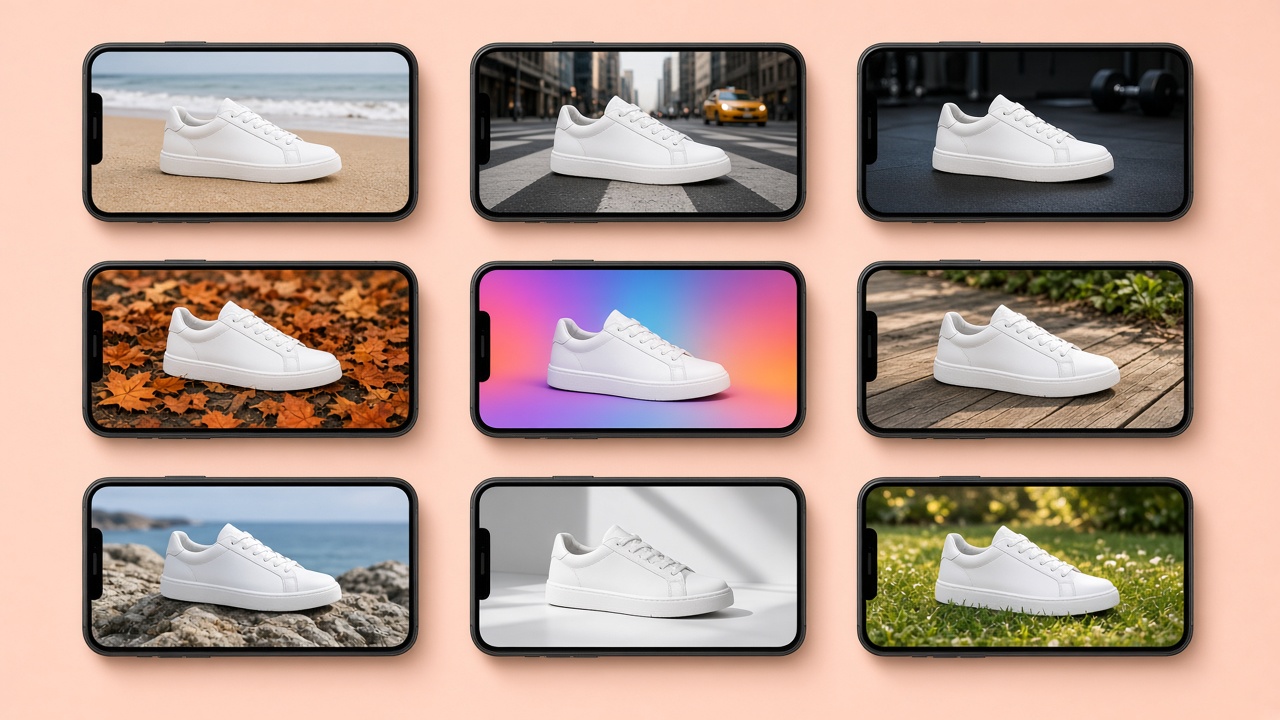
- Lifestyle images. Your product on a kitchen table, in a bathroom, on a terrace. That takes locations, styling and time.
- Volume. You can shoot ten products in an afternoon. Two hundred products every season, you cannot.
- Formats. Your shop wants square, Instagram 4:5, Stories 9:16, your banner 16:9. Cropping rarely works well. See our guide to image and video formats per channel.
That is where AI comes in. At Vela, a photo taken on your phone is enough to start: we turn it into the product on white, lifestyle images, ad variants and video, in every format, with your label legible and your colours accurate. Whether that works out cheaper than a photographer is covered in product photography costs: photographer or AI.
What your iPhone photo needs as a basis for AI images
If you want to take it further with AI, the quality of your source photo sets the result. Make sure:
- the whole product is in the frame, not cropped;
- the label is sharp and legible, because no model can reliably restore what is blurred;
- the colours are accurate: neutral light, no filters;
- there are no other products or clutter in the frame;
- you ideally supply several angles for products whose back or sides matter.
How to keep those AI images recognisably on-brand afterwards is covered in brand consistency with AI images.
From one iPhone photo to content for every channel
You do not have to wait for a photoshoot. Send us one product photo, simply taken on your iPhone, and we will show you what Vela makes of it. Vela Studio starts at €195 a month (pricing).
Frequently asked questions
How do you take good product photos with an iPhone?
+
Use soft daylight from the side and no flash, put the iPhone on a tripod with the timer, choose the 2x or 3x lens, lock focus and exposure with AE/AF Lock and turn on Grid and Level in Settings > Camera. Shoot every product with the same angle, distance and background.
What iPhone settings should I use for product photos?
+
Turn on Grid and Level in Settings > Camera, switch the flash off, use the 2x or 3x lens, lock focus and exposure by touching and holding the product until AE/AF Lock appears, and use the timer. Use normal Photo mode rather than Portrait mode and edit without filters.
Can I remove the background from a product photo on an iPhone?
+
Yes. On iOS 16 or later, touch and hold the product in the Photos app until a glowing outline appears, then copy the subject or drag it into another app. Check the edges: glass, hair, fabric and clear packaging often go wrong.
Is an iPhone good enough for online shop product photos?
+
For packshots, yes, if you control light, stability and consistency. It gets harder with volume: lifestyle images, many products and every format per channel. That is where a photographer or an AI studio is often more efficient.
Can an iPhone photo be the basis for AI product images?
+
Yes. The whole product should be in the frame, the label sharp and legible, the colours accurate and nothing else in shot. At Vela, one such photo is enough to create lifestyle images, ad variants and video in every format.
Ready to ship content that catches the wind?
Book a live intro and see the studio in action.