White background product photography: how to do it (and what bol.com, Amazon and Google require)
Three ways to get a product shot on white, the image rules of bol.com, Amazon and Google Shopping side by side, and the mistakes that get your photos rejected.
By The Vela Team
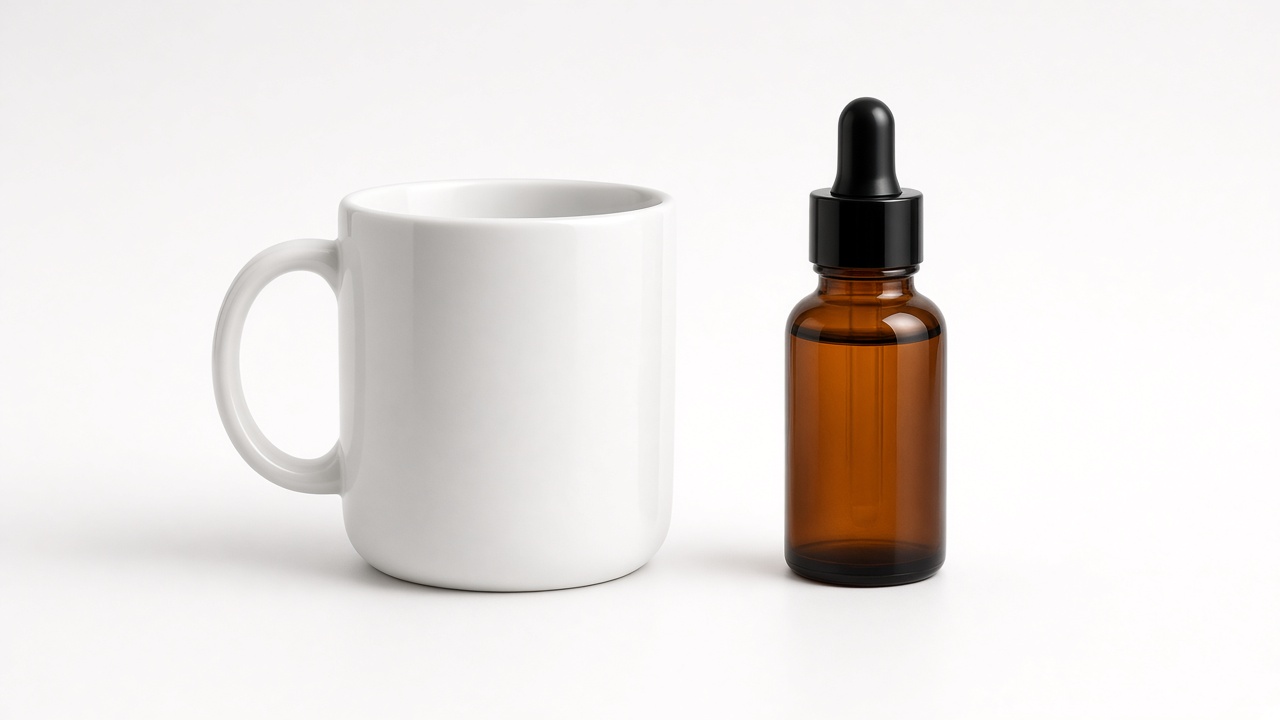
Short answer: there are three ways to get a product photo on a white background: (1) shoot the product on white paper or in a light box with plenty of soft, even light, (2) shoot it normally and make the background white afterwards with an editing tool, or (3) have it done by a photographer or an AI studio. The right choice depends on how many products you have and where the photo will be used. If you sell on bol.com or Amazon, white is not a style choice for the main image but a requirement: bol.com asks for a white, neutral background with no visible shadow, and Amazon for pure white (RGB 255, 255, 255).
Below you will find the exact requirements per platform first, then the three methods with their pros and cons, a step-by-step guide to doing it yourself and the mistakes we see most often.
Why use a white background for product photos?
A product photo on white, often called a packshot, does one job: it shows the product as it is, without distraction. For a small business that has three practical benefits:
- Marketplaces require it. For the main image on bol.com and Amazon, white is mandatory (see the table below).
- Your catalogue looks consistent. On a category page with forty products, you can tell straight away whether everything was photographed the same way.
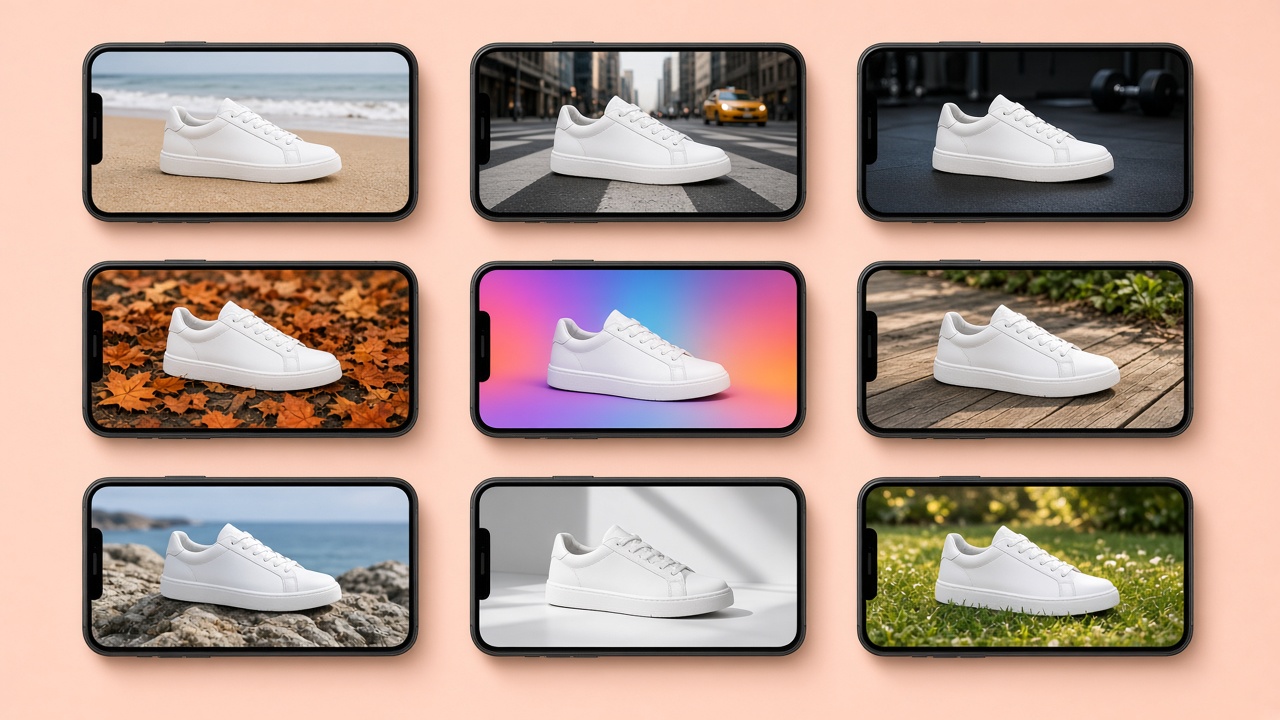
- You can reuse it. A clean cut-out of your product is the starting point for everything else: banners, ads, lifestyle images and print.
So a white background is mainly a foundation. It rarely sells on its own, but without a good packshot everything else gets harder.
What do bol.com, Amazon and Google Shopping require?
The three channels Belgian online shops sell on most often each have their own rules. These are the main ones for the main image, as stated in their official help pages on 16 October 2026:
| Requirement | bol.com | Amazon | Google Shopping |
|---|---|---|---|
| Background | White, neutral, no visible shadow | Pure white, RGB 255, 255, 255 | White not required; a clear, unobstructed view of the product |
| Size | Min. 500×500 px, max. 6000×6000 px; zoom from 1200×1200 px | Zoom from 1,000 px on the longest side | Min. 500×500 px from 31 January 2027; around 1500×1500 px recommended |
| How much of the frame the product fills | As much as possible; white space is trimmed | At least 85% | 75% to 90% recommended |
| Text, logos, watermarks | Not allowed | Not allowed | No promotional text, watermarks or borders |
| Source | bol.com | Amazon Seller Central | Google Merchant Center |
A few details that are easy to miss:
- bol.com wants the main image to show the front of the item, with no models and no front, side and back views combined in one image. Lifestyle images are allowed as additional photos (bol.com). On its content guidance page bol.com prefers 1500×1500 pixels (bol.com Content, Dutch).
- Google requires images created with generative AI to carry metadata saying so (for example the IPTC tag DigitalSourceType: TrainedAlgorithmicMedia), and you must not strip that metadata (Google Merchant Center). We cover this in our article on labelling AI images under the AI Act.
- Google is raising the minimum size: until 31 January 2027, 100×100 pixels is enough (250×250 for clothing); after that, 500×500 pixels applies to all products (Google Merchant Center).
Three ways to get product photos on a white background
1. Shoot on white yourself
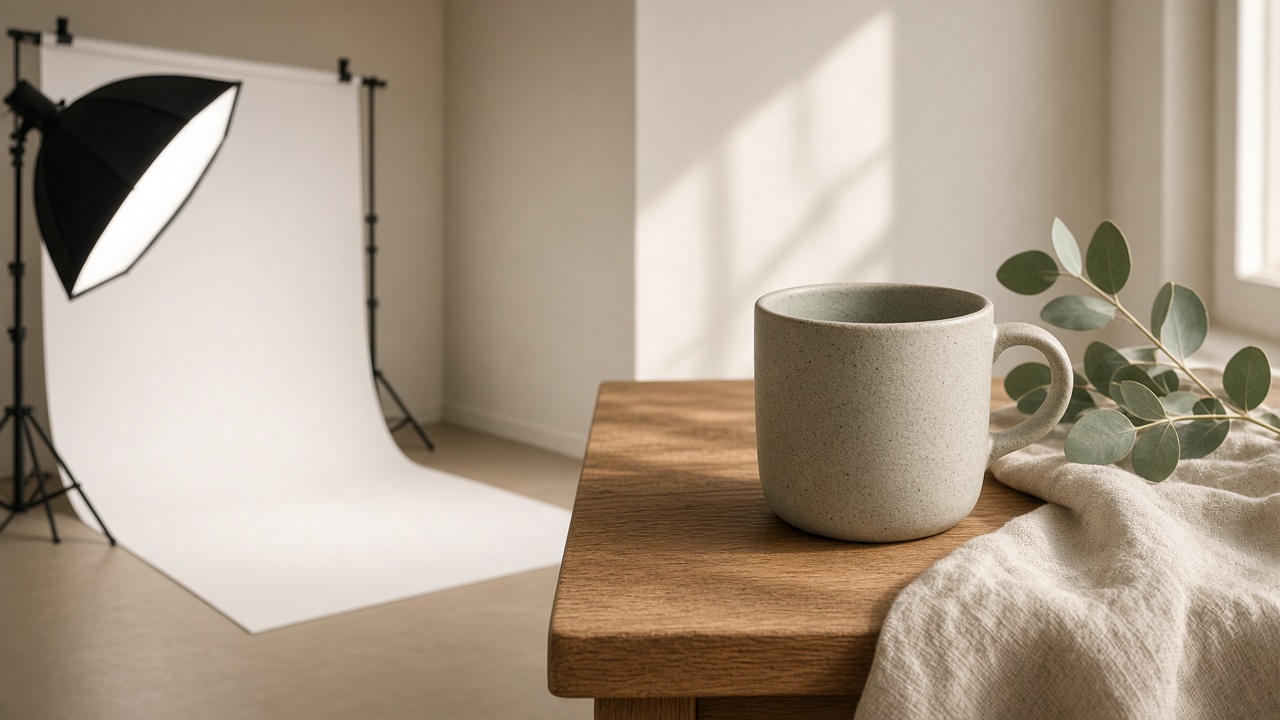
Place the product on a seamless white background: a roll of white photo paper or a sheet of white card curving from the wall down to the table (a sweep), or a light box for small items. Then add plenty of soft light.
- Pro: cheap, and you stay in control. After a few sessions it gets quick.
- Con: you rarely get truly even white straight out of the camera. Some editing is almost always needed.
- Best for: small ranges, products that are not shiny or reflective.
2. Make the background white afterwards
Photograph the product on a calm, plain surface and remove or replace the background later. On an iPhone running iOS 16 or later, you can lift the subject from the background in the Photos app by touching and holding it (Apple Support). There are also online tools and apps that remove the background automatically.
- Pro: fast, even with an ordinary phone photo.
- Con: edges of hair, fabric, glass and clear packaging often go wrong, and a cut-out loses its natural shadow, so the product appears to float.
- Best for: quick fixes, products with clean outlines.
3. Have it done by a photographer or an AI studio
A product photographer delivers packshots that meet the requirements straight away. What that costs and when AI is a real alternative is covered in our comparison of product photography costs: photographer or AI. An AI studio such as Vela starts from a photo you already have and delivers the product on white as well as in other settings and formats.
- Pro: professional and consistent across your whole catalogue, without learning photography yourself.
- Con: it costs money, and with a photographer your product has to go to the studio.
- Best for: larger ranges, selling on marketplaces, products that are hard to photograph.
Step by step: shoot a product photo on white in 7 steps
- Clean the product. Dust, fingerprints and small scratches show up twice as clearly on white. A microfibre cloth is your best investment.
- Build a sweep. Lay white paper or card in a smooth curve from a wall or box down to the table, so there is no horizon line behind the product.
- Choose your light. Large, soft daylight from the side (a window without direct sun) or two lamps with diffusers left and right. Nothing directly above the product: that creates harsh shadows.
- Fix your camera or phone in place. A tripod gives you sharp photos and the same framing for every product, which keeps your catalogue consistent.
- Expose for the product, not the background. A background that is slightly too bright is better than a grey one. On an iPhone, tap the product and slide the exposure up a touch.
- Shoot the front first. That becomes your main image. Then the sides, back, details and packaging as additional images.
- Edit. Make the background evenly white, crop so the product fills the frame (at least 85% for Amazon) and export as a JPG in sRGB.
Your phone's own settings make a difference too. We cover those in a separate article later this week.
How to check that your background really is white
"White" on screen is not always white in the pixels. A light grey of RGB 240 looks white, but Amazon asks for 255, 255, 255 (Amazon Seller Central). Checking is simple:
- Open the photo in an editing app and use the colour picker in several places, in the corners and next to the product. All three values should read 255.
- Watch for vignetting: corners that are darker than the centre. It is common in phone photos taken in a light box.
- Look at the edge around the product. A grey or coloured fringe (a "halo") gives away a background that was replaced afterwards.
Common mistakes with product photos on white
- A dull, grey background from too little light. Better to overexpose slightly and correct the product afterwards.
- A colour cast. Mixed light (daylight plus a warm bulb) adds a yellow or blue tint. Stick to one type of light.
- The product too small in the frame. Marketplaces trim white space or require the product to fill most of the image.
- Text, badges or logos on the main image. They belong on additional images or in your ads, not on the main shot.
- A floating product with no shadow at all after cutting it out. bol.com asks for no visible shadow, but on your own shop a subtle contact shadow often looks more natural.
- Every photo slightly different. A different angle, distance or light stands out immediately on a category page.
A white background alone is not enough
A packshot on white is the foundation, but rarely the image that convinces the customer. That is why marketplaces allow extra images: other angles, details and lifestyle images showing the product in use. In its content guidelines for fashion, bol.com writes that additional images lead to higher conversion and that lifestyle images reduce returns and customer questions (bol.com fashion content guidelines, Dutch PDF).
That is where many small businesses get stuck: one photoshoot a year produces packshots, but not lifestyle images for every product, every season and every channel. Vela starts from one existing photo, a packshot, a phone photo or a link to your product page, and turns it into the product on white, lifestyle images and video, in eighteen formats. Your label and colours stay exactly as they are. How to keep those images recognisably on-brand is covered in brand consistency with AI images, and the formats you need per channel are in our guide to image and video formats per channel.
You can see the cost straight away on our pricing section: Vela Studio starts at €195 a month, with 40 images and 5 videos included.
From one product photo to a complete product page
Already have a photo of your product, even a quick one taken on your phone? That is enough to get started. Send us one product photo and we will show you what Vela makes of it: on white, in context and in every format your channels need.
Frequently asked questions
How do you take a product photo with a white background?
+
Place the product on a seamless white background (white paper in a curve or a light box), light it with soft, even light from the side, use a tripod and expose for the product. Then make the background evenly white and crop. Alternatively, shoot on a plain surface and remove the background with an editing tool, or have it done by a photographer or an AI studio.
Does bol.com require a white background?
+
Yes, for the main image. bol.com asks for a white, neutral background with no visible shadow, showing the front of the item, with no models, text or logos. The image must be at least 500×500 pixels; zoom works from 1200×1200 pixels. Lifestyle images are allowed as additional images.
What white background does Amazon require for the main image?
+
Amazon requires a pure white background with RGB values of 255, 255, 255. The product must fill at least 85% of the image, with no text, logos or watermarks. Zoom works from 1,000 pixels on the longest side.
Do Google Shopping images need a white background?
+
No. Google Merchant Center does not require a white background, but it does require a clear, unobstructed view of the product with no promotional text, watermarks or borders. Google recommends the product fills 75% to 90% of the image and images of around 1500×1500 pixels. From 31 January 2027 the minimum is 500×500 pixels.
Can I use AI to create a white background for product photos?
+
Yes, as long as the product itself stays accurate and recognisable. For Google Shopping, note that images created with generative AI must contain metadata saying so, such as the IPTC DigitalSourceType tag, and you must not remove it.
How do I check that my background is pure white?
+
Use the colour picker in an editing app at several points in the background. Pure white reads RGB 255, 255, 255. Also check for darker corners and for a grey or coloured fringe around the product.
Ready to ship content that catches the wind?
Book a live intro and see the studio in action.